博客NexT主题美化设置

在网站根目录下输入以下命令

git clone https://github.com/theme-next/hexo-theme-next themes/next

这样在当前目录下的themes文件夹中就有了Next主题

我们将站点根目录下的 _config.yml文件称为 站点配置文件 , 将 themes/next 文件夹内的 _config.yml 文件称为主题配置文件 。

1、启用主题

打开站点配置文件 ,找到 theme ,建议用 ctrl+f 搜索theme 快速定位,修改为

# Extensions
## Plugins: https://hexo.io/plugins/
## Themes: https://hexo.io/themes/
theme: next

2、选择主题风格

打开 主题配置文件 ,找到 Scheme SettingsNext主题提供四种风格,分别为 Muse , Mist , Pisces , Gemini , 使用时只需将想启用的风格前面的 # 删除即可,我使用的是 Gemini 风格的

# ---------------------------------------------------------------
# Scheme Settings
# ---------------------------------------------------------------

# Schemes
# scheme: Muse
# scheme: Mist
# scheme: Pisces
scheme: Gemini

3、菜单设置

菜单包括:首页、归档、分类、标签、关于等等

刚开始的时候默认只有首页和归档两个,可以根据需要添加相应的菜单,打开 主题配置文件 ,找到 Menu Settings , 一下为我的设置

# ---------------------------------------------------------------
# Menu Settings
# ---------------------------------------------------------------

# When running the site in a subdirectory (e.g. domain.tld/blog), remove the leading slash from link value (/archives -> archives).
# Usage: `Key: /link/ || icon`
# Key is the name of menu item. If the translation for this item is available, the translated text will be loaded, otherwise the Key name will be used. Key is case-senstive.
# Value before `||` delimeter is the target link.
# Value after `||` delimeter is the name of FontAwesome icon. If icon (with or without delimeter) is not specified, question icon will be loaded.
# External url should start with http:// or https://
menu:
home: / || home
about: /about/ || user
tags: /tags/ || tags
categories: /categories/ || th
archives: /archives/ || archive
#schedule: /schedule/ || calendar
#sitemap: /sitemap.xml || sitemap
#commonweal: /404/ || heartbeat

添加分类模块

  • 新建一个分类页面

    hexo new page categories
  • source/categories/index.md 文件中的 type 修改为 type: "categories"

  • 在菜单设置中将 categories取消注释

  • 打开 scaffolds/post.md 文件,在后面增加 categories:

  • 之后的每一篇文章会自动创建 categories: ,后面输入分类名即可

添加标签模块

  • 新建一个分类页面

    hexo new page tags
  • source/tags/index.md 文件中的 type 修改为 type: "tags"

  • 在菜单设置中将 tags取消注释

  • 打开 scaffolds/post.md 文件,在后面增加 tags:

  • 之后的每一篇文章会自动创建 tags: ,后面输入标签名即可,多个标签按如下格式输入

    tags:
    - 标签1
    - 标签2
    ...

添加关于模块

  • 新建一个分类页面

    hexo new page about
  • 修改 source/about/index.md 文件的内容为关于的内容即可

  • 在菜单设置中将 about取消注释

添加搜索模块

  • 安装 hexo-generator-searchdb 插件

    npm install hexo-generator-searchdb --save
  • 打开 站点配置文件 ,在最后添加

    search:
    path: search.xml
    field: post
    format: html
    limit: 10000
  • 打开 主题配置文件, 找到 local_search ,将 enable 修改为 true

    # Local search
    # Dependencies: https://github.com/theme-next/hexo-generator-searchdb
    local_search:
    enable: true

修改个人社交信息

  • 主题配置文件 中搜索 social ,选择想展示的社交信息,如下

    social:
    GitHub: https://github.com/ShangguanHong || github
    E-Mail: mailto:sgh1450280694@gmail.com || envelope
    Weibo: https://weibo.com/5590338381 || weibo
    #Google: https://plus.google.com/yourname || google
    #Twitter: https://twitter.com/yourname || twitter

4、网站动画效果

  • 使用canvas_nest

    theme/next目录下执行 git clone https://github.com/theme-next/theme-next-canvas-nest source/lib/canvas-nest 命令,将 主题配置文件 中的canvas_nest: false 改为 canvas_nest: true

  • 使用three_waves

    theme/next目录下执行 git clone https://github.com/theme-next/theme-next-three source/lib/three_waves 命令,将 主题配置文件 中的three_waves: false 改为 three_waves: true

  • 使用canvas_lines

    主题配置文件 中的canvas_lines: false 改为 canvas_lines: true

  • 使用canvas_sphere

    主题配置文件 中的canvas_sphere: false 改为 canvas_sphere: true

5、文章字数统计与阅读时间

  • 在网站根目录下运行命令

    npm install hexo-symbols-count-time --save
  • 修改 站点配置文件 ,添加以下代码

    symbols_count_time:
    symbols: true
    time: true
    total_symbols: true
    total_time: true
  • 修改 主题配置文件 ,找到 symbols_count_time

    # Post wordcount display settings
    # Dependencies: https://github.com/theme-next/hexo-symbols-count-time
    symbols_count_time:
    separated_meta: true
    item_text_post: true
    item_text_total: false
    awl: 4
    wpm: 275

6、安装博客评论功能utterances

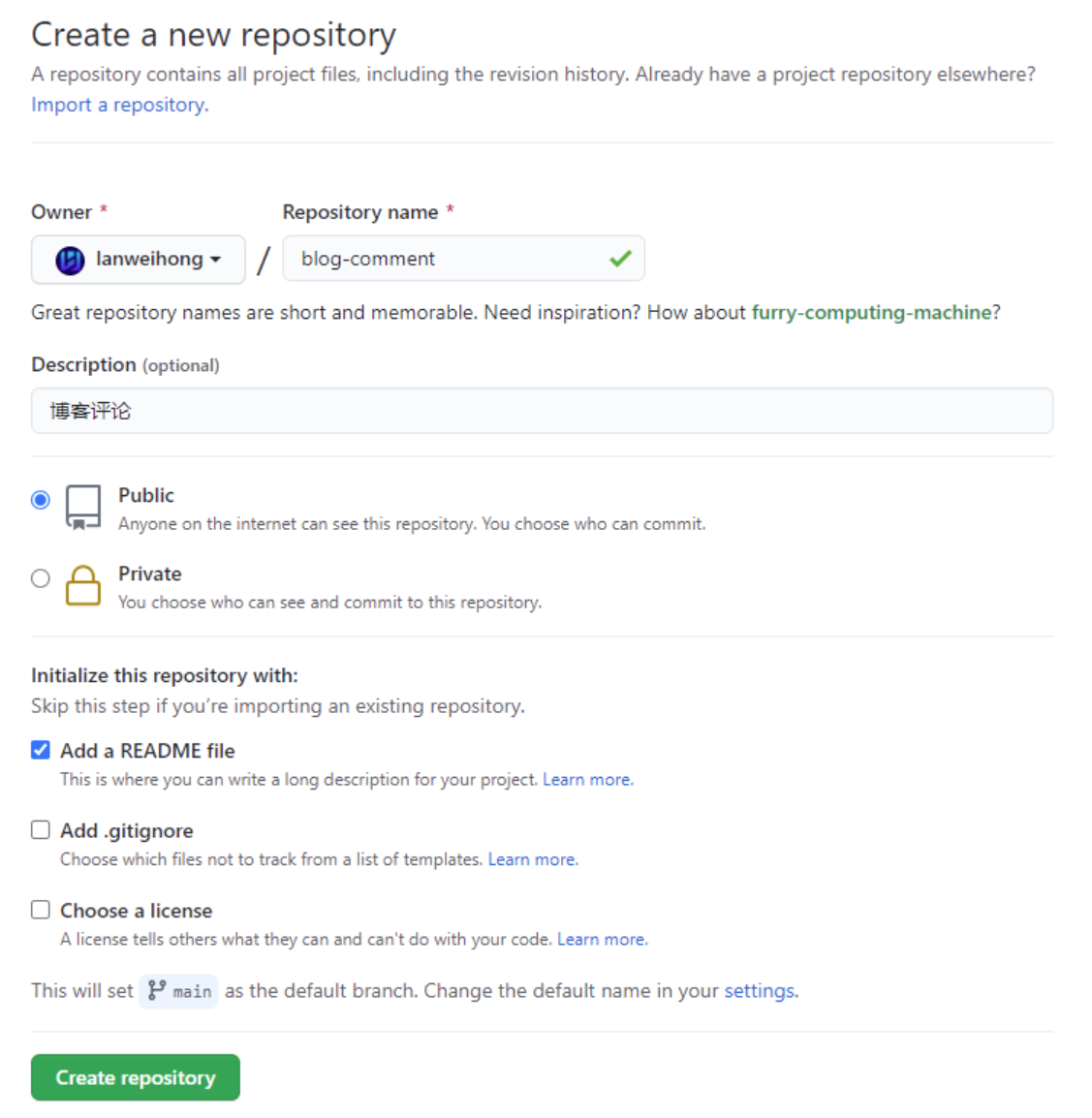
对于github上来说,先创建一个公共的库
sctd2u1k.dw2

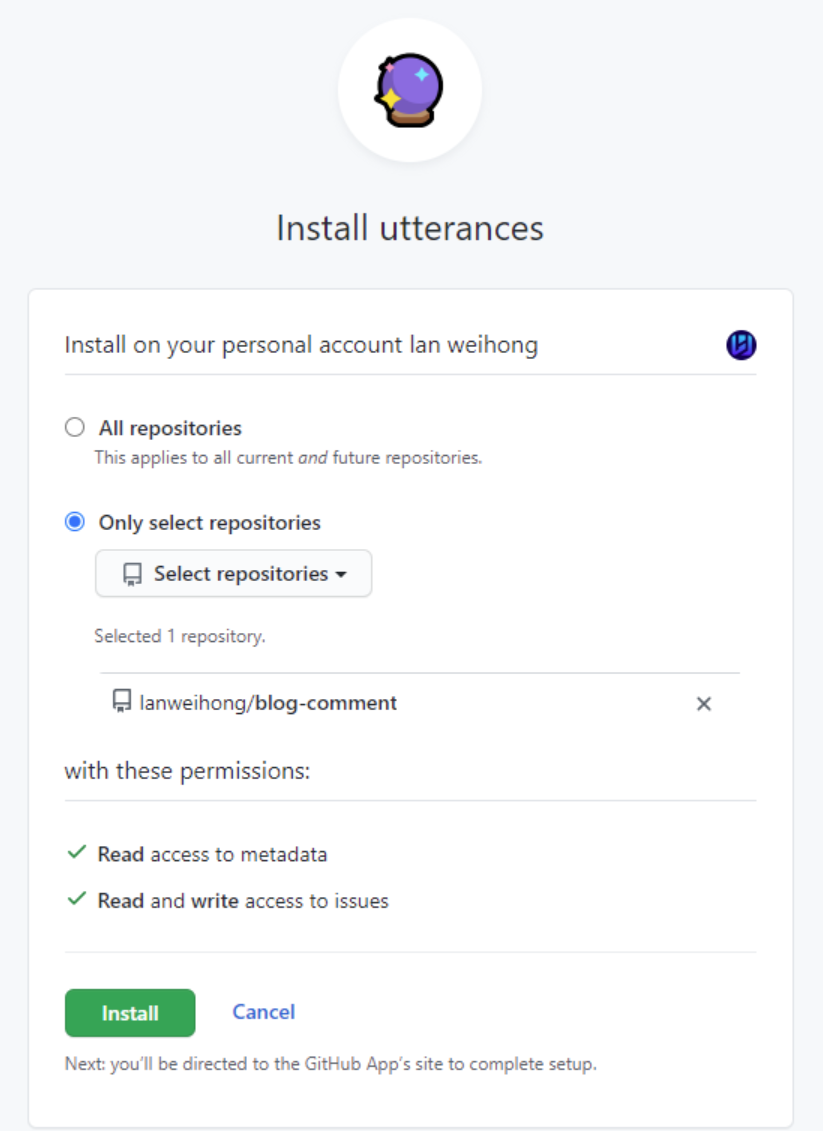
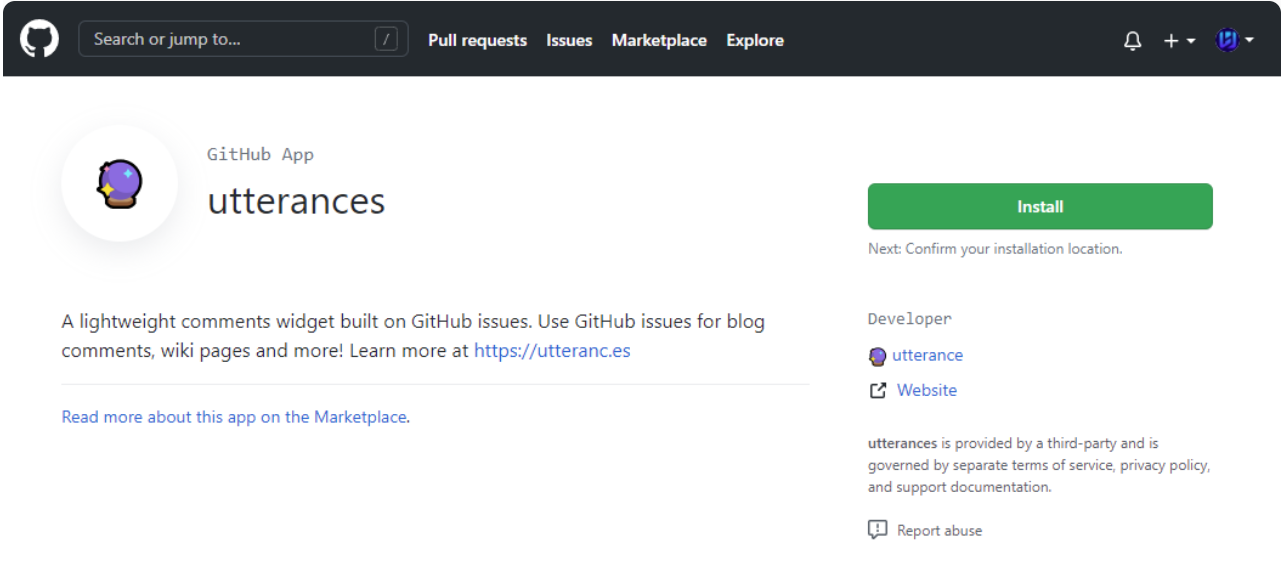
然后安装GitHub App utterances(https://github.com/apps/utterances)
eefao34w.kza

选择关联的仓库,我们选择刚刚建好的仓库;

f1gk34ui.nhb

在主题配置中

# Utterances
# For more information: https://utteranc.es
utterances:
enable: true
repo: zxzlimit/comment # Github repository owner and name
# Available values: pathname | url | title | og:title
issue_term: pathname
# Available values: github-light | github-dark | preferred-color-scheme | github-dark-orange | icy-dark | dark-blue | photon-dark | boxy-light
theme: github-light

在站点配置中

# URL
## Set your site url here. For example, if you use GitHub Page, set url as 'https://username.github.io/project'
url: http://localhost:4000/ #改为自己的网站url

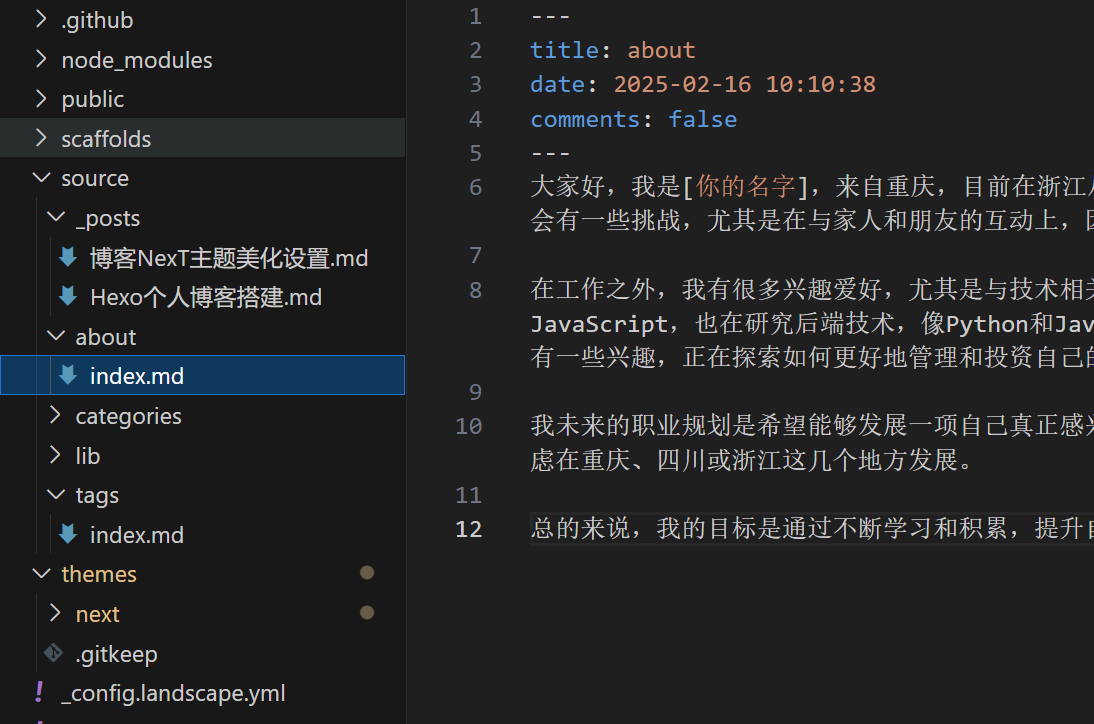
在其他页面也有评论框怎么办,在该页面下添加comments: false

nfinoie1.gfx

7、代码块的设置

在next主题下的设置文件中_config.yml,进行代码块的设置

codeblock:
# Code Highlight theme
# All available themes: https://theme-next.js.org/highlight/
theme:
light: default # Light mode的代码高亮主题,选择了"default"
dark: stackoverflow-dark # Dark mode的代码高亮主题,选择了"stackoverflow-dark"
prism:
light: prism # Light mode的Prism.js主题,选择了"prism"
dark: prism-dark # Dark mode的Prism.js主题,选择了"prism-dark"

# Add copy button on codeblock
copy_button:
enable: false # 是否启用代码块的复制按钮
# Available values: default | flat | mac
style: default # 设置复制按钮的样式,可选default, flat, mac等 开启mac代码块

# Fold code block
fold:
enable: false # 是否启用折叠代码块功能
height: 500 # 设定代码折叠的默认高度,超过这个高度的代码块会自动折叠

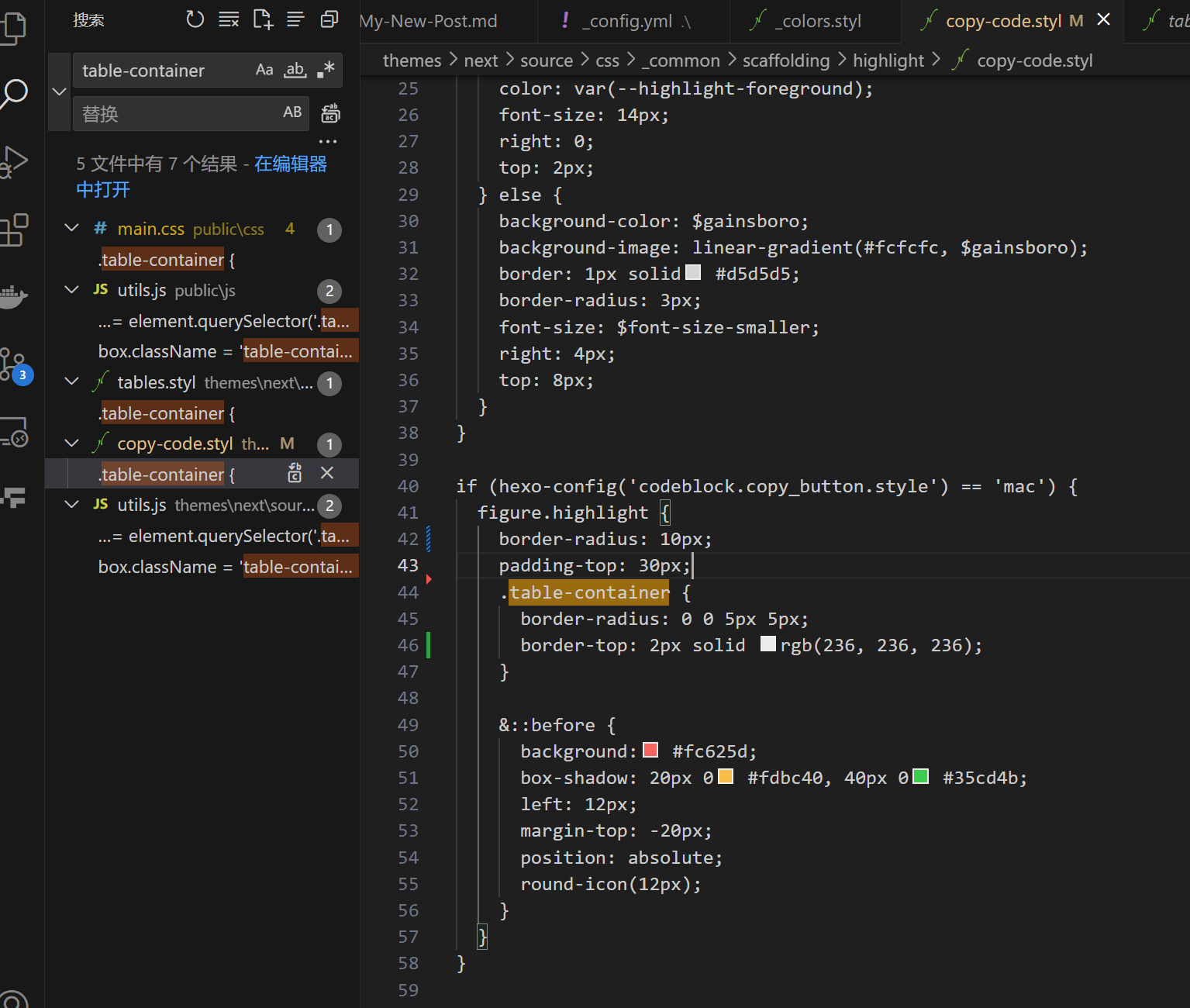
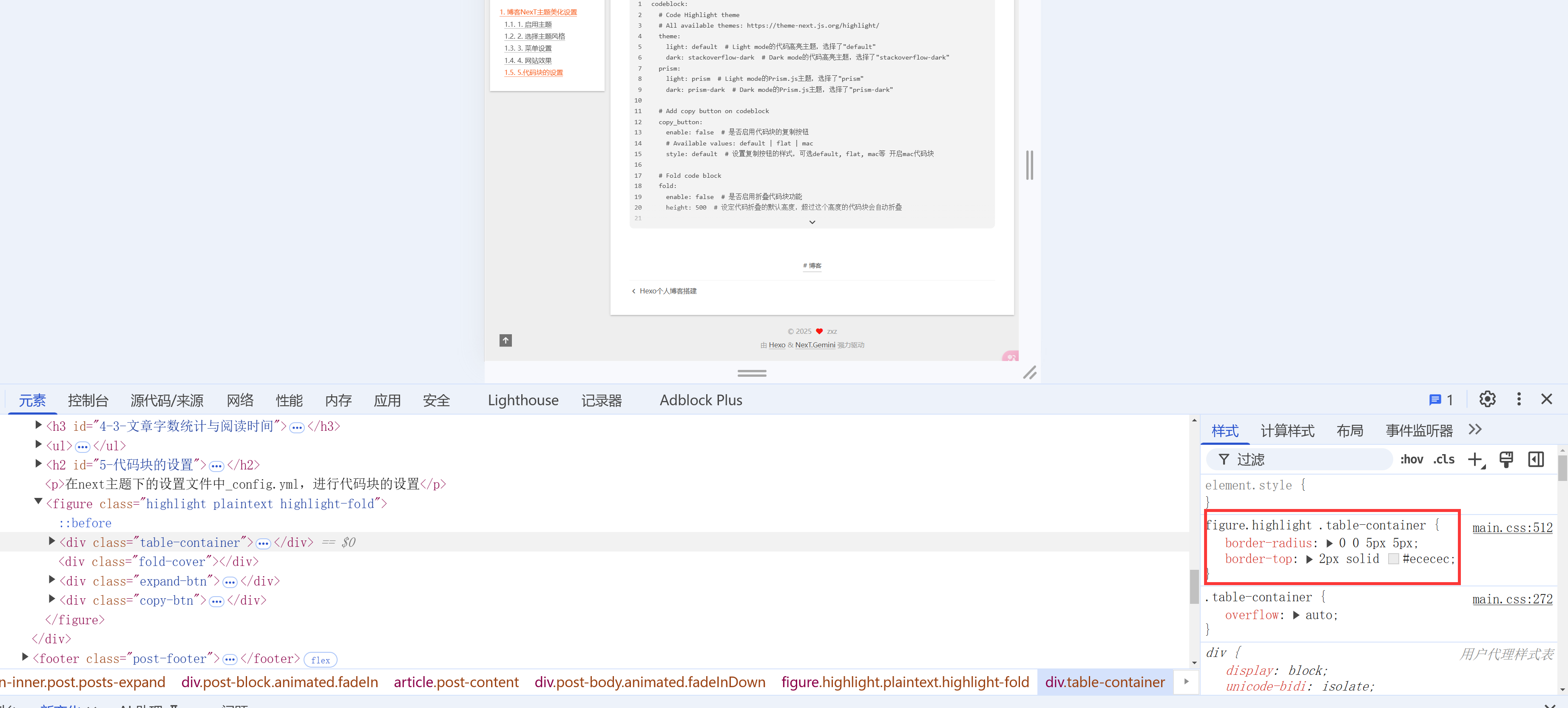
其他微调在网页内自己调,然后在vscode中搜索更改,一点一点摸索

biuesq4z.d3l

oracds20.wey

8、添加图片放大预览功能

利用 Fancybox 能放大查看图片。

Fancybox2Fancybox3 两个版本,这里使用 Fancybox3。

如果已经有 fancybox2 的,需要在站点根目录下执行下列命令进行删除:

rm -rf themes/next/source/lib/fancybox

进入到 themes/next 主题目录下,执行以下命令安装 fancybox3 模块:

cd themes/next
git clone https://github.com/theme-next/theme-next-fancybox3 source/lib/fancybox

编辑 主题配置文件,启用 fancybox,修改配置如下:

fancybox: true

9、设置侧栏阅读进度百分比

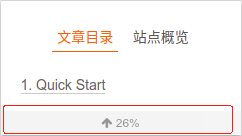
编辑 站点配置文件,修改 back2top 部分如下:

back2top:
enable: true
# Back to top in sidebar.
sidebar: true
# Scroll percent label in b2t button.
scrollpercent: true

sidebar-reading-progress

10、设置顶部阅读进度条

进入到 NexT 主题目录下:

cd themes/next

安装模块到 source/lib 目录下:

git clone https://github.com/theme-next/theme-next-reading-progress source/lib/reading_progress

编辑 主题配置文件,启用 reading_progress 模块,如下:

注意:不是vendors:下的reading_progress

# Reading progress bar
# Dependencies: https://github.com/theme-next/theme-next-reading-progress
reading_progress:
enable: true
color: "#37c6c0"
height: 2px

11、设置左上角或右上角 github 图标

开启默认设置

NexT 支持通过配置开启右上角 github 图标,编辑 主题配置文件,启用 github-banner 如下:

# `Follow me on GitHub` banner in the top-right corner.
github_banner:
enable: true
# 点击即跳转到该链接,自行设定
permalink: https://github.com/yourname
# 当鼠标悬浮于上方时显示的文本
title: Follow me on GitHub

效果如下:

github-banner

进阶自定义设置

自定义配置使其可以使用 GitHub RibbonsGitHub Corners 中的任何一款图标。

修改 /themes/next/layout/_partials/github-banners.swig 文件内容如下:

github-banner.swig

同时编辑 站点配置文件,修改 github_banner 部分如下:

# `Follow me on GitHub` banner in the top-left or top-right corner.
# `Fork me on GitHub` banner in the top-left or top-right corner.
github_banner:
enable: true
permalink: https://github.com/wylu
title: Follow me on GitHub
# Available values of ribbons:
# See: https://github.blog/2008-12-19-github-ribbons/
# ribbons-left-red | ribbons-left-green | ribbons-left-darkblue
# ribbons-left-orange | ribbons-left-gray | ribbons-left-white
# ribbons-right-red | ribbons-right-green | ribbons-right-darkblue
# ribbons-right-orange | ribbons-right-gray | ribbons-right-white
# Available values of corners:
# See: http://tholman.com/github-corners/
# corners-right-black | corners-right-green | corners-right-red
# corners-right-blue | corners-right-white
# corners-left-black | corners-left-green | corners-left-red
# corners-left-blue | corners-left-white
# If not set, it will use NexT default style.
type:
# You can set size of banner.
# Default values for ribbons: width = height = 120
# Default values for corners: width = height = 80
size:
# whether to display on the mobile side.
# If use left banner, you should better set it "false" as the banner will cover menu button.
mobile: true

这样你就可以通过 type 随意切换 banner 的样式了。

12、解决文章目录自带编号问题

首先打开配置文件
找到博客根目录,右键打开菜单,点击“Git Bash Here”,博主博客路径为“/e/hexo/Blog”,输入以下命令,注意“next”为博主使用的主题名称,请根据自己的主题修改,可在“themes”目录下查看。

$ vim themes/next/_config.yml

修改配置文件
找到“toc”功能

toc:
enable: true # 启用目录(TOC)
number: true # 自动给目录中的条目添加编号
wrap: false # 如果为 true,标题过长时会换行显示(超出侧边栏宽度时)
expand_all: false # 如果为 true,目录将显示所有级别的内容,否则只显示当前级别
max_depth: 6 # 生成目录时,最大支持的标题深度

执行以下命令

$ hexo clean && hexo g && hexo s

“hexo clean”清除缓存文件

“hexo g” 是 “hexo generate” 的缩写,生成静态文件

“hexo s” 是 “hexo server” 的缩写,启动本地服务,用于预览主题

13、关闭自带动画,提升效率

在next主题下搜索motion,将其改为false即可

# Animation Settings
# ---------------------------------------------------------------

# Use Animate.css to animate everything.
# For more information: https://animate.style
motion:
enable: false
async: false
duration: 200
transition:
# All available transition variants: https://theme-next.js.org/animate/
menu_item: fadeInDown
post_block: fadeIn
post_header: fadeInDown
post_body: fadeInDown
coll_header: fadeInLeft
# Only for Pisces | Gemini.
sidebar: fadeInUp

参考

更多设置参考https://www.wylu.me/posts/e0424f3f/#%E6%B7%BB%E5%8A%A0%E9%BC%A0%E6%A0%87%E7%82%B9%E5%87%BB%E6%95%88%E6%9E%9C